Why fixed playback speed is not enough
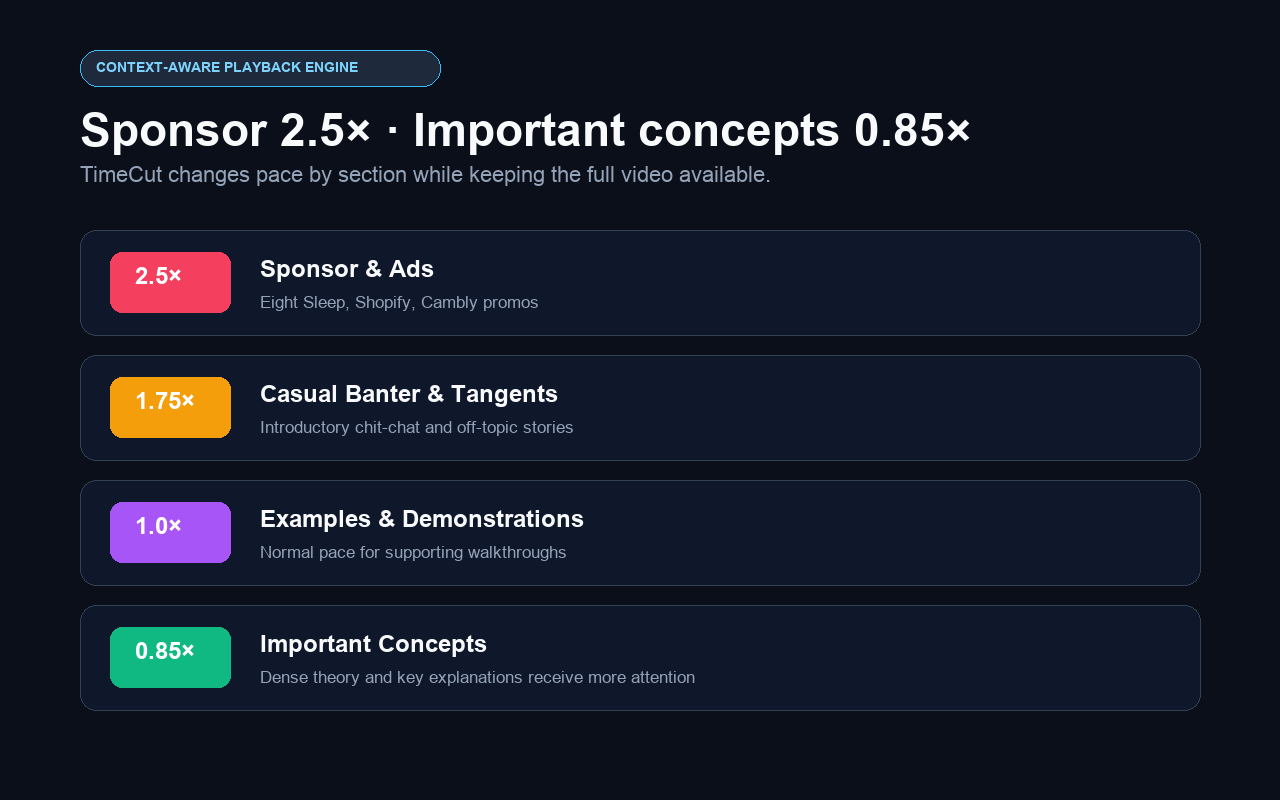
A fixed 2× speed treats introductions, sponsor reads, examples and dense explanations as if they require the same attention. They do not.
A practical setup for everyday YouTube use
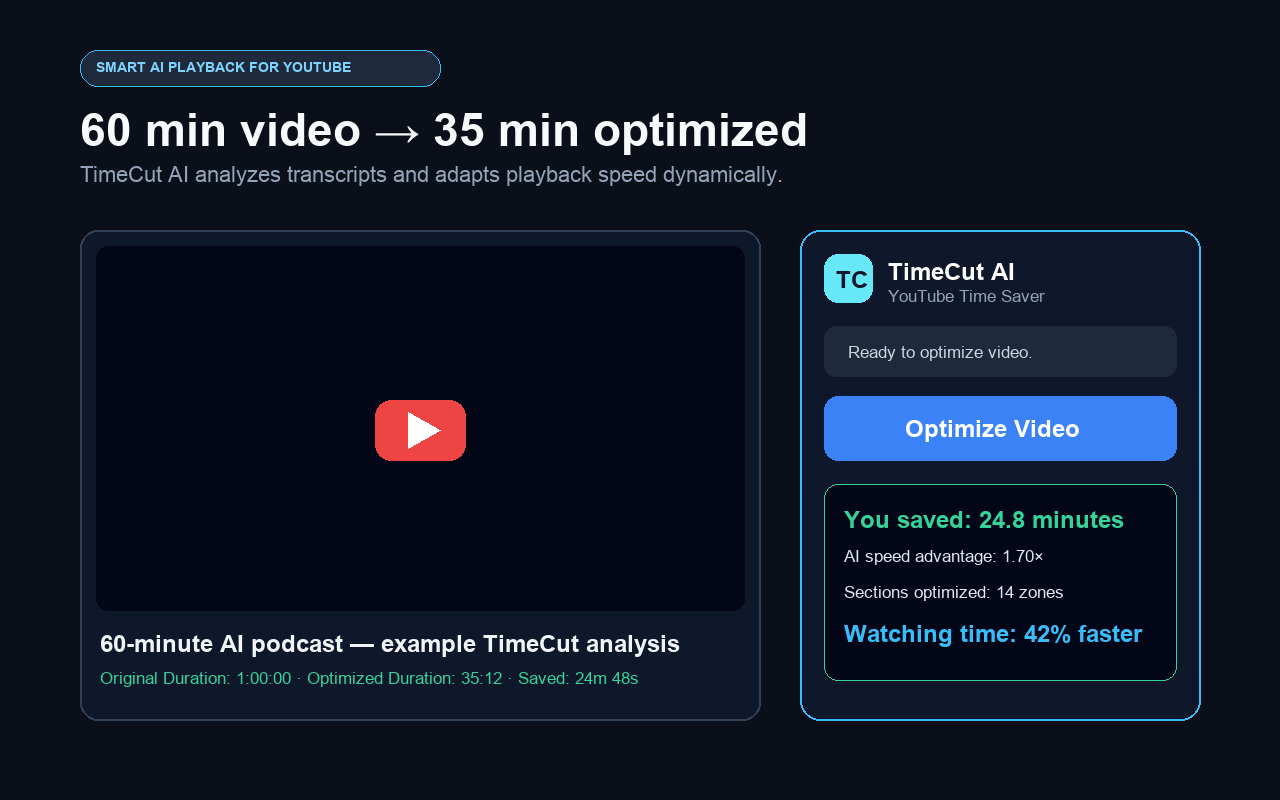
Open a normal YouTube video, make the transcript available and select Optimize Video. TimeCut requests a speed map, validates every segment and applies the rates directly to the player. You can pause, seek or stop whenever you want.
A realistic usage example
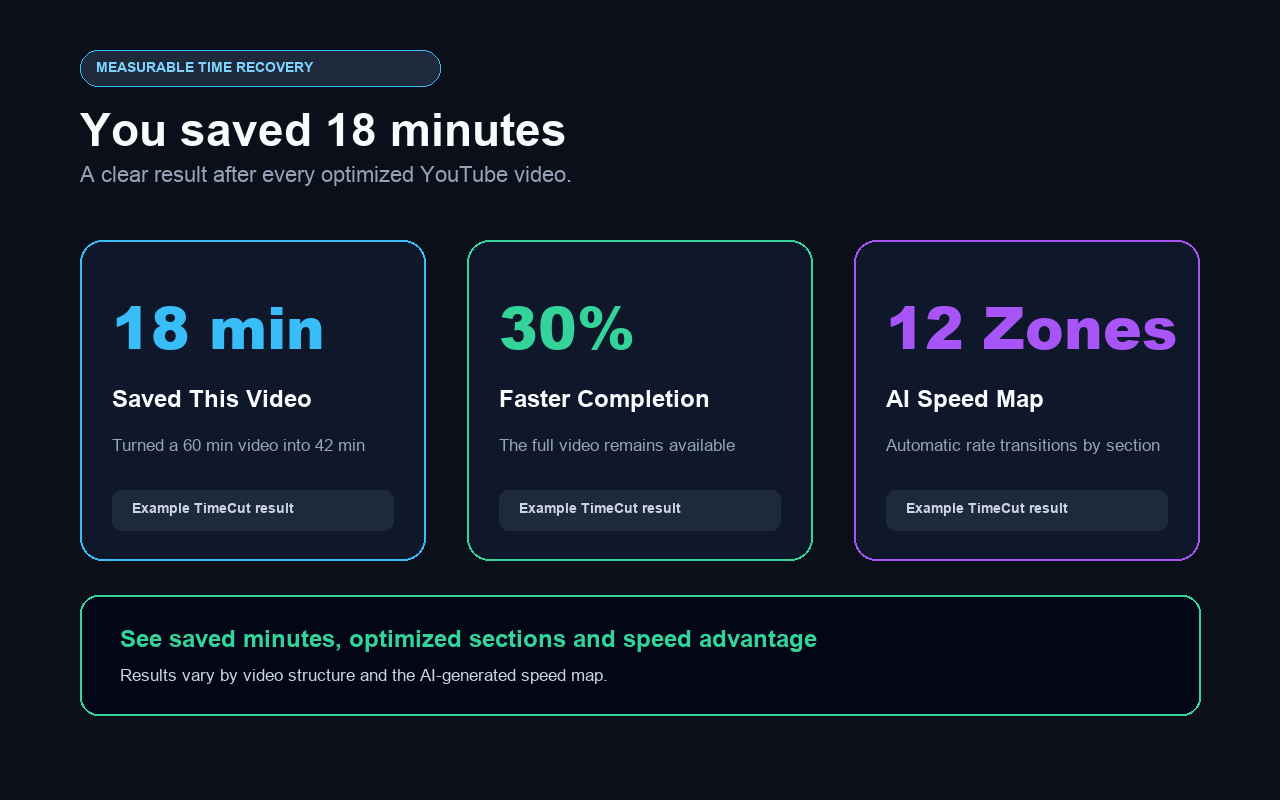
In an illustrative 60-minute video, TimeCut may accelerate sponsor and filler sections while slowing an important concept to 0.85×. The exact result varies with the transcript and video structure.
Common questions
Does TimeCut use one speed for the whole video?
No. It applies validated speed zones to different time ranges while the video plays.
What speeds can it use?
The extension accepts AI-generated playback rates only within the supported 0.5× to 3× boundary.
Can I turn optimization off?
Yes. Stop Optimization restores the playback speed that was active before TimeCut.