Why fixed playback speed is not enough
Long videos often contain a mix of dense material and low-information transitions. Manually changing speed or repeatedly seeking interrupts attention.
A practical setup for everyday YouTube use
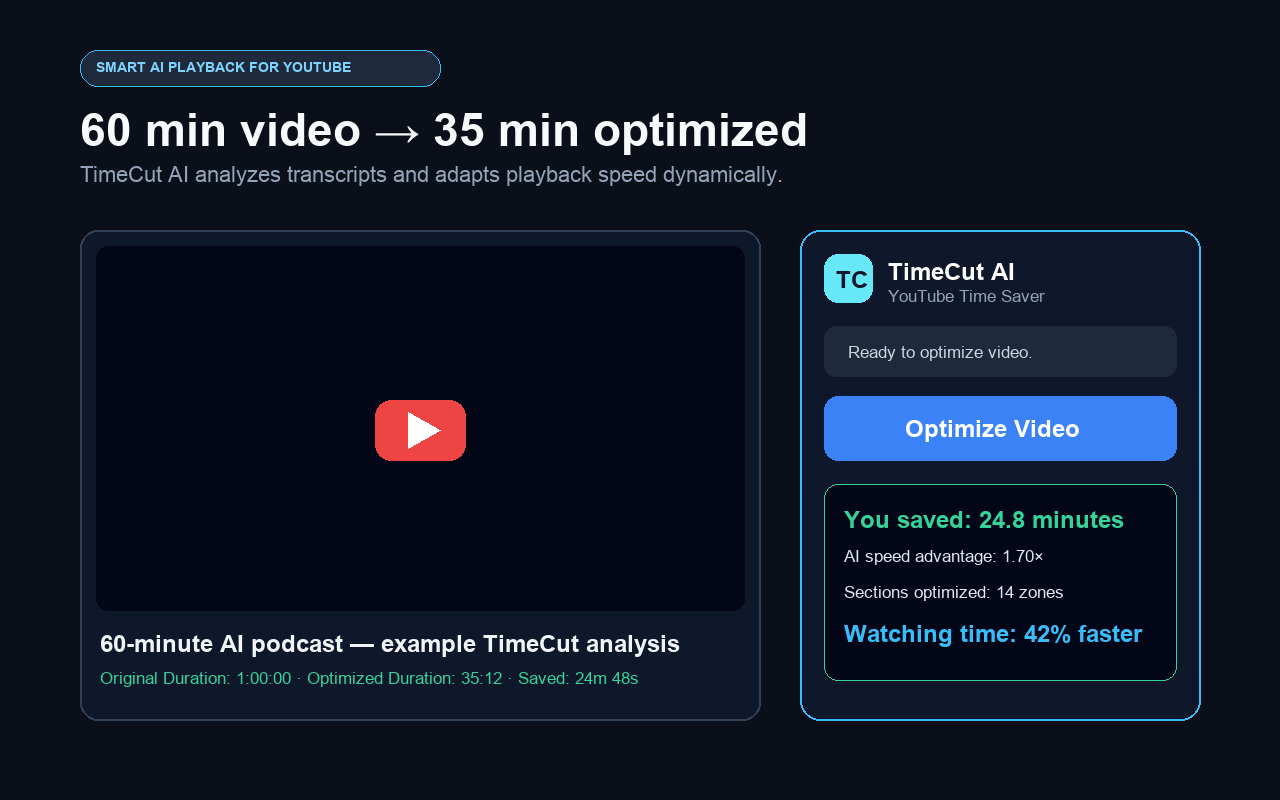
Open a normal YouTube video, make the transcript available and select Optimize Video. TimeCut requests a speed map, validates every segment and applies the rates directly to the player. You can pause, seek or stop whenever you want.
A realistic usage example
One example map can turn a 60-minute watch into roughly 35 minutes. This is an example, not a guarantee; savings depend on the content and generated speed zones.
Common questions
How does TimeCut calculate saved time?
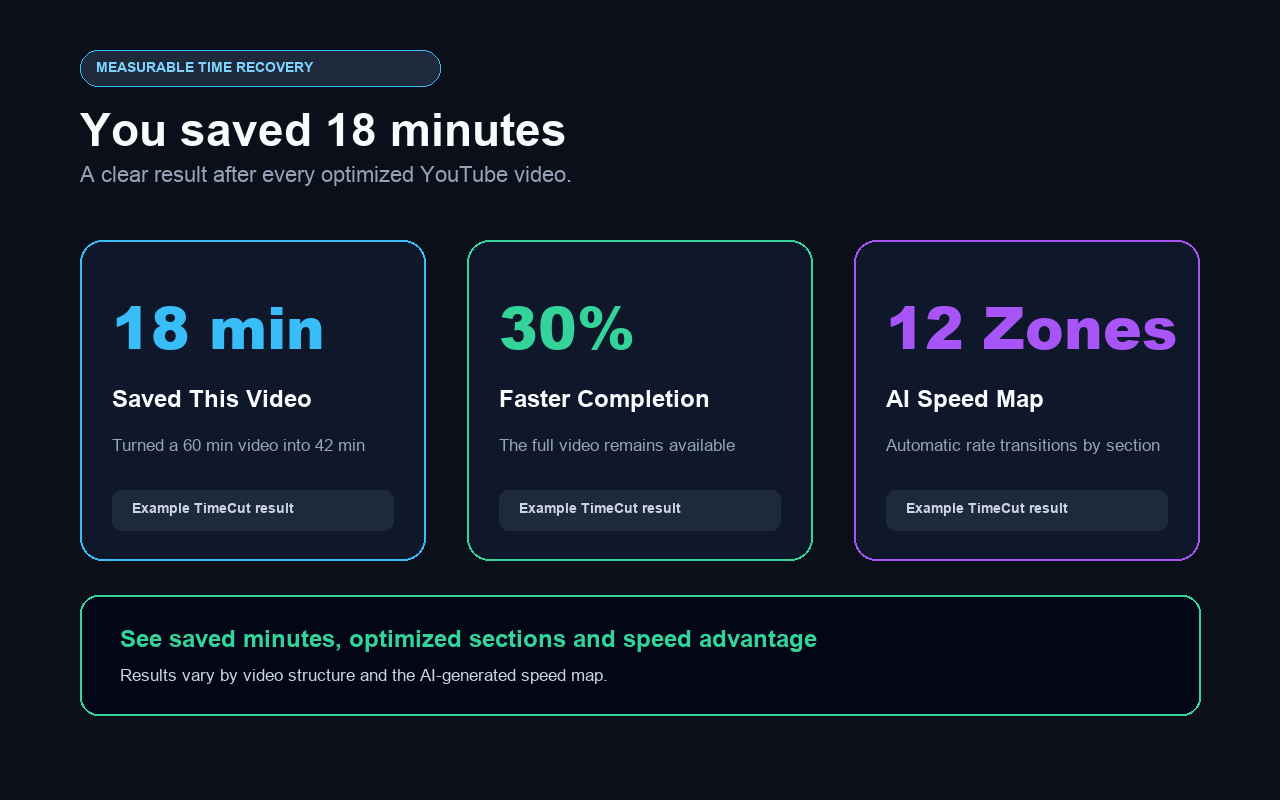
It compares each segment’s original duration with the duration at the applied playback rate.
Does it remove parts of the video?
No. TimeCut changes playback speed; it does not delete the original video.
Will every 60-minute video become 35 minutes?
No. That is an illustrative result. Each speed map depends on the transcript and video structure.