Why fixed playback speed is not enough
Lecture pacing changes constantly. Definitions and formulas may need attention, while repeated explanations and administrative sections can usually move faster.
A practical setup for everyday YouTube use
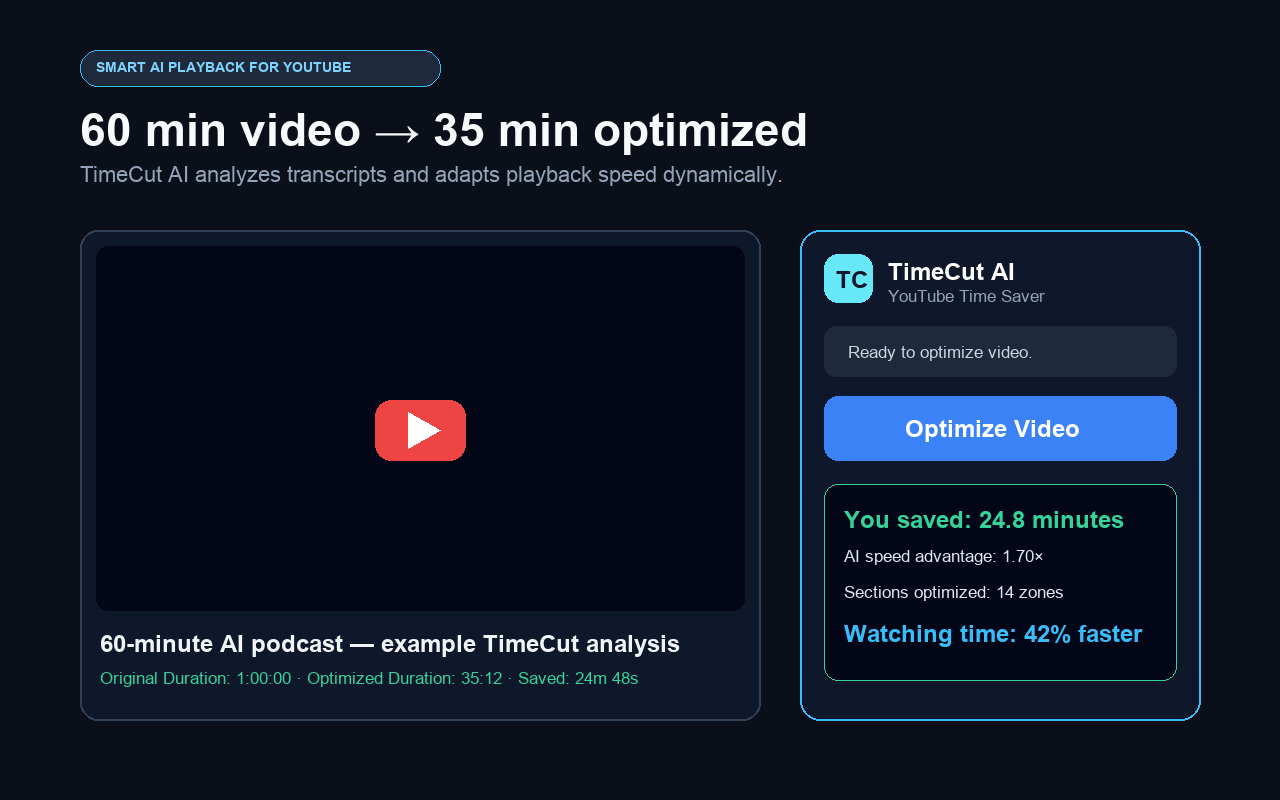
Open a normal YouTube video, make the transcript available and select Optimize Video. TimeCut requests a speed map, validates every segment and applies the rates directly to the player. You can pause, seek or stop whenever you want.
A realistic usage example
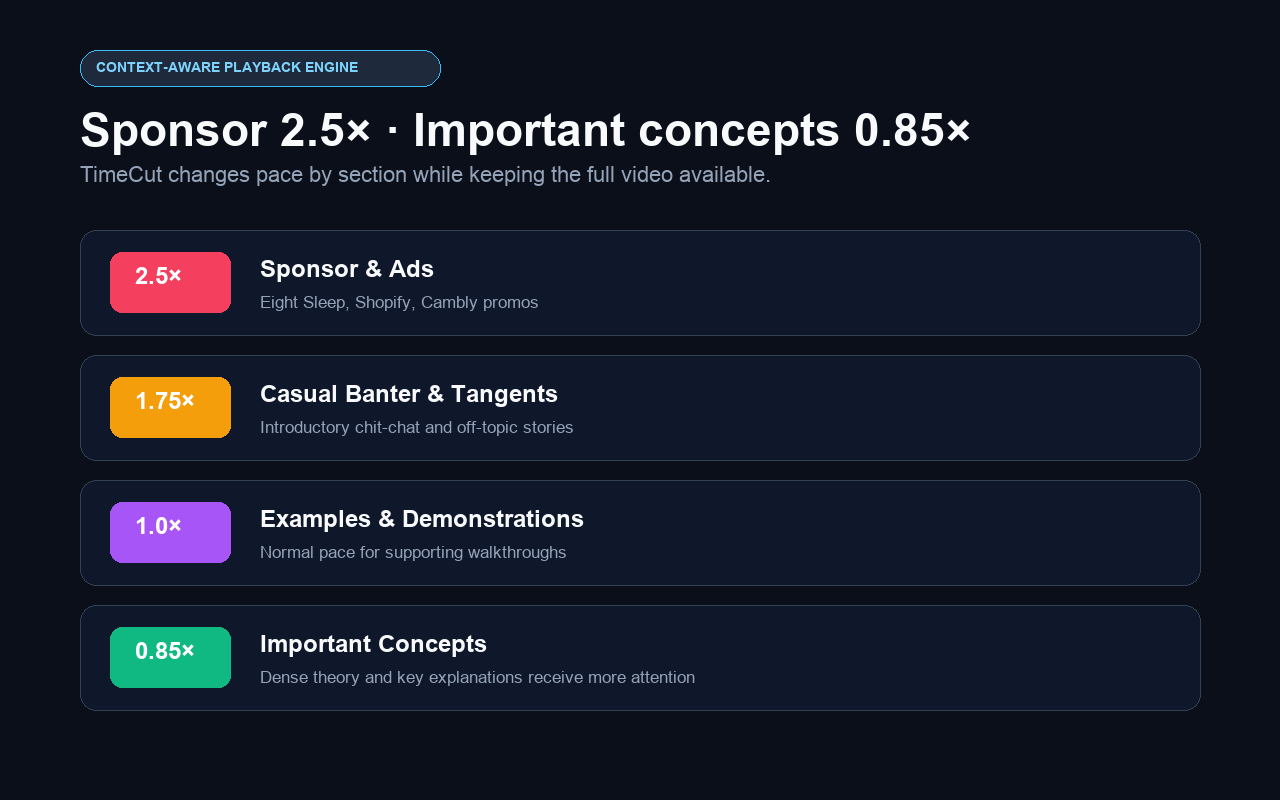
For a long lecture, TimeCut can preserve a key concept at 0.85×, keep examples near 1× and accelerate repeated setup. Always confirm the generated map suits your learning style.
Common questions
Is TimeCut suitable for technical lectures?
Yes, especially when the transcript clearly separates setup, examples and important concepts.
Does it create notes too?
The extension retains the transcript-summary feature alongside playback optimization.
Can important content be slower than normal?
Yes. Validated segments can use rates below 1× when the AI identifies a dense explanation.